
First of all you should prepare image with LDAP support as described in Docker image of Wordpress with LDAP support or why do not use ldap plugin before you created container...
But if you already have a container there is also possibility to enable LDAP support:
Run bash inside container:
then exec:
the last line will terminate container. If you have set power policy to restart always there is nothing you have to do. Alternatively you can run container again
Install kubectl:
Install Minikube:
It copy file minikube-linux-amd64 to /usr/local/bin/minikube.
Install docker:
downgrade to supported version:
Set hostname
You have to have name minikube be resolved to your IP:
Optional
Install conntrack:
Installing crictl:
Recomended settings:
The main command:
you should get something like this:
Launch first pod:
check if it works:
you can also check ip or service url:
when you check that it works (using browser/wget/culr) you can cleanup:
but what is it for...?
I've upgraded Pi-hole do 4.0 version:
as you can see I use new name (pihole/pihole), set power policy and additional --dns option - it's necessary.
Last time I've to manually edit /etc/resolve.conf inside container - this is simple workaround.
How to switch light using 3 channels 433MHz switch. It's very simple:

1 RF signal
My 3 button 433MHz switch sends 3 codes:
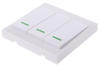
- 672BE2- left button
- 672BE8 - center button
- 672BE4 - right button
2 MQTT publish
I set up RF Bridge to send MQTT messages like this (center button):
to topic:
Domoticz needs to get mesage with topic:
with payload like this:
We need to translate:
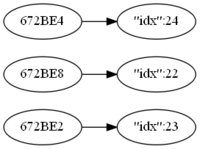
3, 4 and 5 message translation
Mosquitto and Node-RED are deployed using Docker on same machine:
You can see that I've link mosquitto container as broker.
The switch node splits messages depending on msg.payload.RfReceived.Data, and change node set properties (idx, command and switchcmd)
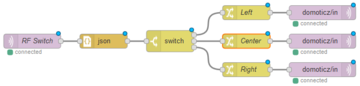
Here you have complete Node-RED code.
Finally Domoticz tuns the light!
Of course you have to have set up Domoticz first.
If you forgot to set-up power policy during container creation you can easy modify it:
you can check it:
If you use ReadyNAS OS 6 you can install Pi-hole in Docker container:
you don't have to run
it will be done automatic (or rather automagic).
As You can see I've set up several parameters:
- run is command to docker to run container
- --name my-new-pi-hole is name of container (optional)
- -e means Environment Variable - it is to pass some options to container
- ServerIP - it is IP that Pi-hole should use (mandatory)
- DNS1 - IP of your DNS server (optional) - if you not provide it will use google's DNS
- WEBPASSWORD (useful) - you will need it to login to administration portal
- -d - tells to docker that this container should work in background
- -p - is port redirection from your docker machine to port in container
- 8080:80 (useful) - is redirection of 8080 port of your docker machine to port 80 in container
- 53:53 (optional)- is redirection of 53 port of your docker machine to port 53 in container (not necessary in my case)
- 53:53/udp (very useful) - is the same for UDP port - this is what we need to work
- diginc/pi-hole - is of course name of image to run
Now you can use command
to get some information about your container
as you can see status is health: starting, after some time it will change to healthy.
Now you can login to (192.168.1.28 is address of may docker machine) http://192.168.1.28:8080/admin/ to check that no one has used your server (Total queries 0).
Let's check if it works:
Yes!
Now it's enough to change default DNS in your LAN to your docker machine (in my case 192.168.1.28).
Add comment